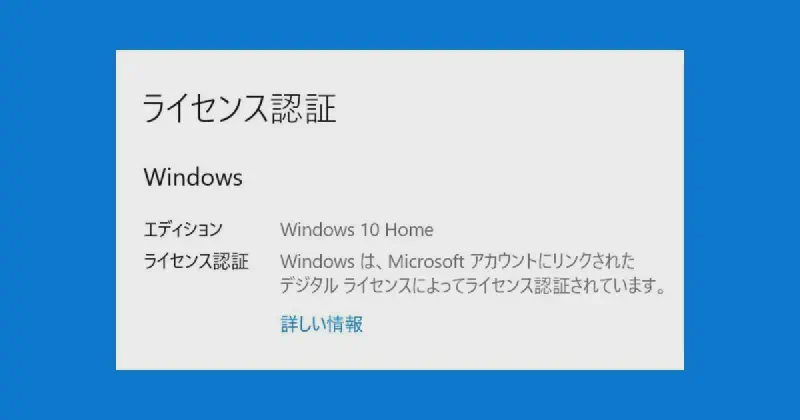
[Windows] How to check license status (just one command)
Have you ever wondered if your Windows license is correctly activated?
A very convenient method is to check your license information with a single command. By following the steps below, you can easily check your current license status.
Command to check license status
You can display license information using a script tool built into Windows. Here is the command to use:
| |
When you run this command, partial license information will be displayed in a window.
How to run
Type “cmd” in the Start Menu, right-click on Command Prompt, and select “Run as administrator”.
Enter the following into the command prompt and press the Enter key:
1slmgr /dliAfter waiting a few seconds, license information like the following will be displayed.
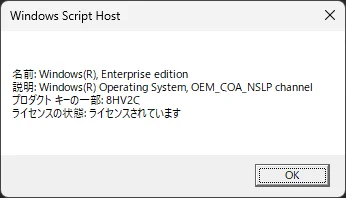
Main information displayed
- Part of the product key
- License type (Retail, OEM, etc.)
- License status (Licensed, expired, not activated, etc.)
Want to know more detailed information?
There are also commands like the following:
slmgr /dlv: Display more detailed license informationslmgr /xpr: Display the license expiration date (e.g., whether it is permanent)
Summary
You can easily check the Windows license status with a single command.
- Simple check:
slmgr /dli - Detailed check:
slmgr /dlv - Expiration date check:
slmgr /xpr
If there is a problem with your license, updates or some functions may be restricted, so it is safe to check regularly.