
Getting Started with Qt Development in VSCode: How to Install the Qt Extension Pack
Hello, Kenji here. This time, I’ll introduce “how to set up a Qt development environment in Visual Studio Code (hereafter VSCode)”.
Recently, there has been an increasing demand for developing Qt applications using the lightweight and highly extensible VSCode, in addition to the official Qt Creator. For those people, I recommend the “Qt Extension Pack”. Simply by installing this extension pack, you can get the main Qt-related extensions all at once.
Target Audience
- Those who want to start GUI application development using Qt
- Those who want to develop in VSCode instead of Qt Creator
- Those who find it troublesome to search for extensions one by one
Prerequisites
- VSCode must be installed (You can download it for free from the official website)
- The main Qt library must be installed (Qt Official Website)
What is the Qt Extension Pack?
The Qt Extension Pack is an extension pack for VSCode. By installing it, the following features are automatically added:
- Support for
.uifiles (Qt Designer) - Syntax highlighting for
.proand.qrcfiles - C++ code completion, building, and debugging assistance for Qt
- Qt Resource Browser
Installation Steps
1. Open VSCode
First, launch VSCode.
2. Open the Extensions View
Click the Activity Bar (square block icon) on the left side to show “Extensions”.
Alternatively, you can press the shortcut
Ctrl + Shift + X.
3. Search for “Qt Extension Pack”
Enter the following keyword in the search bar:
| |
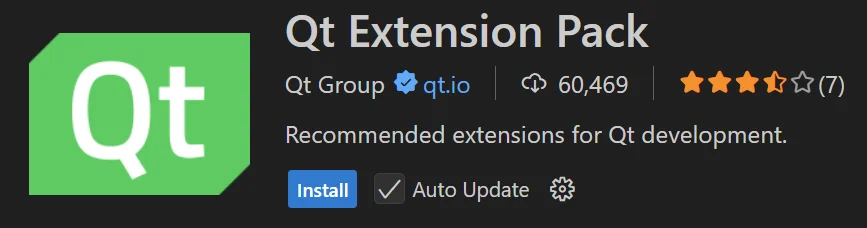
4. Click the Install Button
When the target pack is displayed, click the “Install” button. This will install multiple extensions at once, such as the following:
- Qt Language Support
- QML Support
- Qt Designer Integration
- CMake Tools (Essential for CMake-based Qt development)
Supplementary Project Settings (CMake + Qt Example)
If you use Qt with CMake, the combination with the following extensions is recommended:
Also, if you put the following description in your CMakeLists.txt, integration with Qt will be smooth:
| |
Bonus: How to open .ui files?
.ui files can be edited in Qt Designer.
In VSCode, you can right-click a .ui file → select Open with Qt Designer (requires Qt Designer to be included in the PATH environment variable).
Summary
| Step | Content |
|---|---|
| 1 | Launch VSCode |
| 2 | Open the Extensions Panel |
| 3 | Search for “Qt Extension Pack” |
| 4 | Click the Install button |
Setting up a Qt environment in VSCode is now much easier than before. It has sufficient features as a substitute for Qt Creator, and is recommended for those who want to work nimbly.
Recommended Links
- Qt Official Website
- Qt Extension Pack - Visual Studio Marketplace
- VSCode Official Website
- CMake Tools Extension
Finally
From now on, I plan to proceed with development utilizing Qt UI tools and QML in this environment. Next time, I plan to explain how to build & run a Qt Hello World app from VSCode.
See you next time!