Introduction
I use a US keyboard, and on Windows, I switch Japanese input with Alt + `.
I wanted to use the same key to switch on Mac, and when I looked it up, I found that it can be changed in the settings.
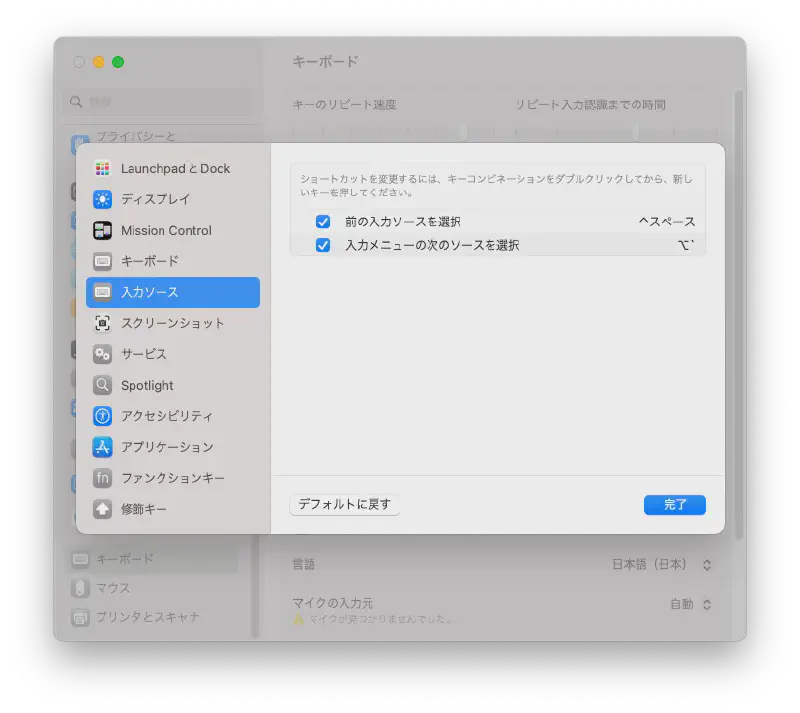
How to configure (macOS Ventura)
- Open System Settings
- Select Keyboard
- Select Keyboard Shortcuts
- Select Input Sources
- Double-click the shortcut notation on the right side of “Select next source in Input menu”
- Press
Alt + ` - Click Done
Now you can switch between English and Japanese with Alt + `.
However, by default, Katakana is included in the input switching cycle, so I removed Katakana from the input sources using the steps below.
- Open System Settings
- Select Keyboard
- Click Edit on the right side of
Japanese - Romajiin Text Input - Click
Japanese - Romaji - Uncheck Katakana in the Input mode
- Click Done
That’s all.