Introduction
By using a service called Ranklet, you can easily get and place popular page rankings from Google Analytics.
In this article, I will show you how to place it on a HUGO blog.
Demo
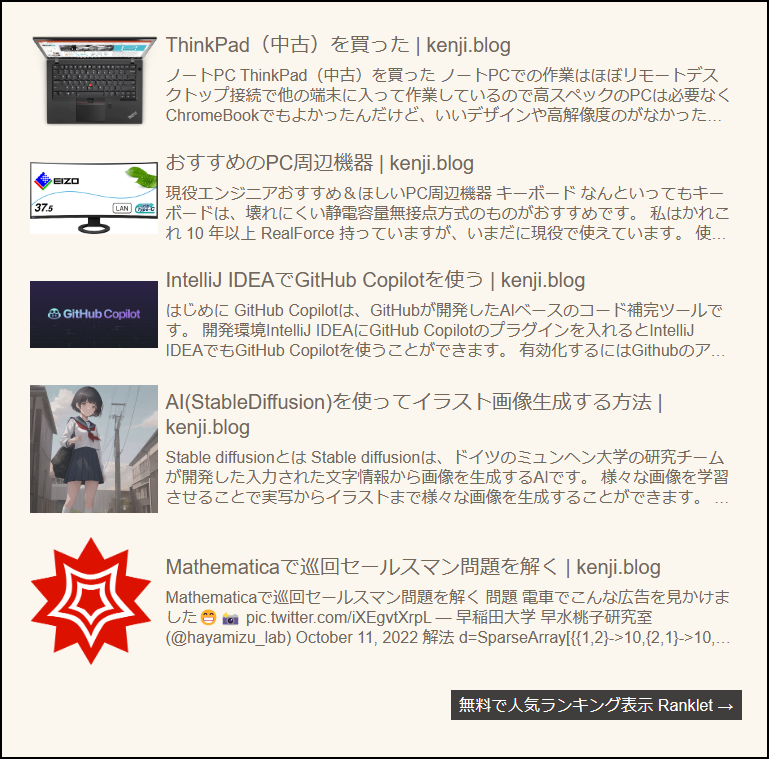
Preparation
- Google Analytics must be set up on your site.
Steps
- Access
Ranklet. - Click
Sign in with Google and log in with your Google account (it must be linked to your Google Analytics account).
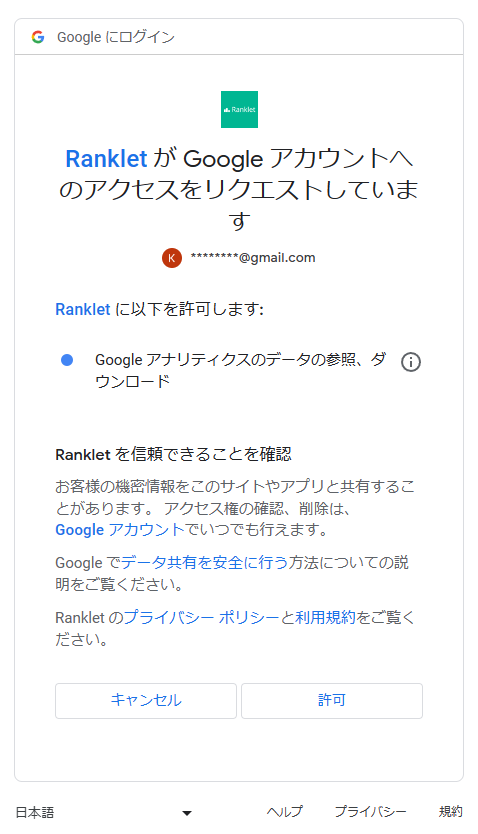
Click Allow.
- Set up basic information.
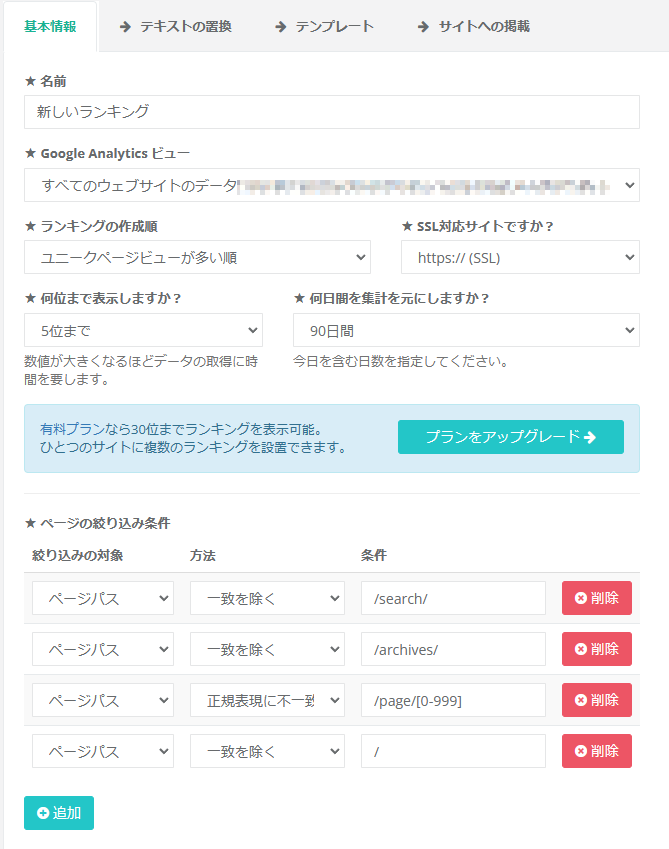 I configured it as above.
- In
Google Analytics View, select the view from which you want to get the ranking.
- Set up text replacement.
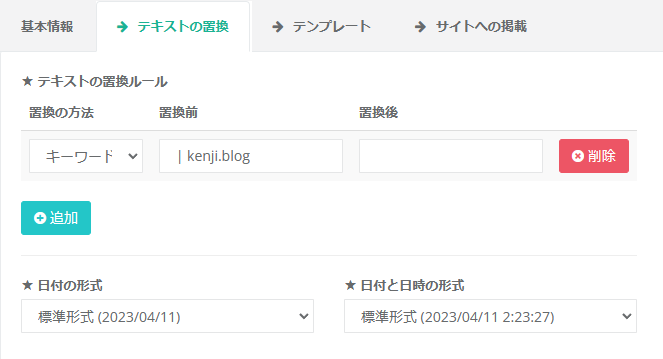 I configured it as above.
This is set to remove
I configured it as above.
This is set to remove | kenji.blog from the page title.
- Set up the template.
- HTML (Hid the ranking numbers)
 1
 2
 3
 4
 5
 6
 7
 8
 9
10
11
12
13
14
15
16
17
18
19
20
21
22
23
24
25
26
27
28
29
30
31
| <div class="ranklet ranklet-reset">
<table class="ranklet-table">
<tbody class="ranklet-pages">
{{#context.pages}}
<tr class="ranklet-page">
<td class="ranklet-image">
{{#image}}
<a href="{{url}}" class="ranklet-link">
<img class="ranklet-img" src="{{image}}" />
</a>
{{/image}}
</td>
<td class="ranklet-meta">
<div class="ranklet-title">
<a href="{{url}}" class="ranklet-link">
{{title}}
</a>
</div>
{{#description}}
<div class="ranklet-description">
<a href="{{url}}" class="ranklet-link">
{{description}}
</a>
</div>
{{/description}}
</td>
</tr>
{{/context.pages}}
</tbody>
</table>
</div>
|
- CSS (Changed font size and set the description to be displayed in 3 lines)
 1
 2
 3
 4
 5
 6
 7
 8
 9
10
11
12
13
14
15
16
17
18
19
20
21
22
23
24
25
26
27
28
29
30
31
32
33
34
35
36
37
38
39
40
41
42
43
44
45
46
47
48
49
50
51
52
53
54
55
| #ranklet-{{context.id}} {
.ranklet-reset { // Reset
table, tr, td, div, span {
margin: 0;
padding: 0;
border: 0;
font-size: 100%;
font: inherit;
vertical-align: baseline;
line-height: 1;
box-sizing: border-box;
}
}
.ranklet-table {
border-collapse: separate;
border-spacing: 8px 24px;
width: 100%;
word-break: break-all;
td {
vertical-align: middle;
}
.ranklet-rank {
text-align: center;
font-size: 120%;
}
.ranklet-image {
text-align: center;
img {
max-width: 128px;
max-height: 128px;
}
}
.ranklet-meta {
.ranklet-title {
font-size: 20px;
line-height: 125%;
}
.ranklet-description {
font-size: 16px;
margin-top: 8px;
line-height: 125%;
display: -webkit-box;
overflow: hidden;
-webkit-box-orient: vertical;
-webkit-line-clamp: 3; /* Number of lines */
}
}
}
}
|
- JavaScript remains unchanged.
- Copy the HTML from “Publish on site”.

Copy the displayed HTML.
- Paste it into the HUGO template.
- Create
layouts/partials/ranklet.html and paste the copied HTML.
1
| <div id="ranklet-11958"></div><script src="//widget.ranklet.com/v1/ranklet/s3/widgets/11958/widget.js"></script>
|
- Paste the following code on the line before
</footer> in layouts/_default/single.html.
1
| {{- partial "ranklet.html" . }}
|
That’s it. Now the ranking will be displayed as shown at the bottom of this page.